How to Create a New FTP User in cPanel
Follow these steps to set up an FTP account for managing your website files, we're assume you're already logged into your portal account.
2. Go to FTP Accounts
-
Scroll to the Files section
-
Click FTP Accounts
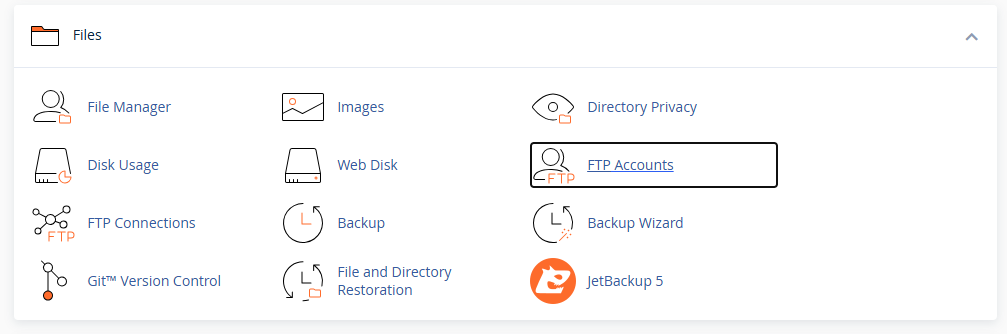
3. Add a New FTP Account
Fill out the Add FTP Account form:
| Field | Description |
|---|---|
| Log In | Create a username for the FTP account |
| Domain | Select the domain for the FTP account |
| Password | Enter a strong password |
| Directory | Set which folder the user can access |
| Quota | Set a storage limit or choose unlimited |
Tip: The directory field auto-fills based on the username. Modify it if you want to grant access only to specific folders.
4. Create the Account
-
Click Create FTP Account
-
A confirmation message will appear once completed
5. Collect FTP Connection Details
Under the FTP Accounts section, locate the new account. You will need:
-
FTP Username:
username@yourdomain.com -
FTP Server/Host: Your domain name or server hostname
-
Port: 21
-
Protocol: FTP (or FTPS for secure access)
You can also click Configure FTP Client for:
-
Manual configuration settings
-
Client configuration files for programs like FileZilla or CoreFTP
Optional: Restrict Folder Access
If the user should only manage a specific folder:
-
Set the Directory field to that folder path (e.g.,
public_html/subfolder)
Finished
Your new FTP user can now access the server using any FTP client with the provided details.