This guide explains how to create a new email folder in cPanel Webmail using Roundcube. Custom folders are useful for organising emails such as invoices, support requests, or personal messages.
Step 3: Go to Folder Settings
-
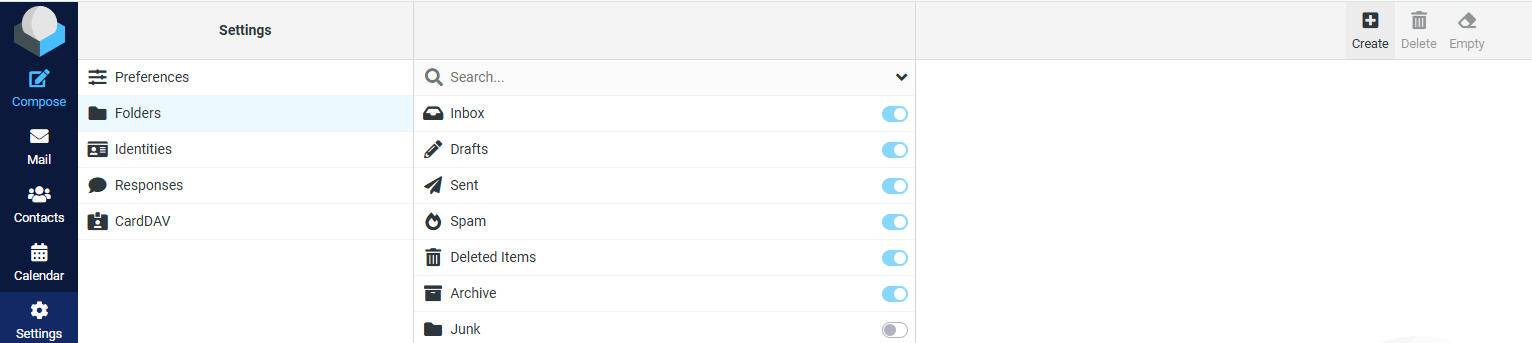
Click the Settings icon (âš™ï¸) in the left-hand menu.
-
From the settings menu, click Folders.
Step 4: Create a New Folder
-
In the Folders section, locate the Create field.
-
Enter the name of your new folder (for example:
InvoicesorClients). -
(Optional) Choose a parent folder if you want it nested under another folder.
-
Click Create.
Step 5: Subscribe to the Folder (If Needed)
-
If the folder does not immediately appear:
-
Make sure the folder is checked/subscribed in the folder list.
-
Click Save if prompted.
-
Step 6: Start Using Your New Folder
-
Return to the Mail view.
-
Your new folder will now appear in the folder list.
-
You can drag emails into it or create filters to move emails automatically.
Tips
-
Folder names should not contain special characters.
-
You can create email filters to sort emails into folders automatically.
-
The same folders will sync with email clients like Outlook or Apple Mail (via IMAP).